




















One Change, Every Company: Five DSD Synchronization Enhancements That Keep Sage 100 Multi-Company Data in Step
One Change, Every Company: Five DSD Synchronization Enhancements That Keep Sage 100 Multi-Company Data in Step
Running more than one company in Sage 100 is common, whether you manage separate legal entities, regional divisions, or a dedicated company for each line of business. But every additional company code multiplies the master file maintenance. A new G/L Account, a new Item, a change to a vendor’s remit-to address, or a customer’s new ship-to location has to be keyed again and again, and every manual re-entry is a chance for the companies to drift out of sync.
DSD Business Systems offers five Sage 100 enhancements that synchronize your master files across companies automatically:
- GLAC G/L Account Copy by Company – copies new and changed G/L Accounts to other companies, with optional Segment Substitution.
- IMIC Item Masterfile Synchronization – copies new and changed Inventory Items, including all Item UDFs, to other companies.
- BMBC Bill of Material Synchronization (newly released!) – copies new and changed Bills of Material, including their components, to other companies.
- AR-1239 Multi-Company Customer Synchronization – synchronizes Customers, Ship-To Addresses, Contacts, and Paperless Delivery Options across companies.
- AP-1085 Multi-Company Vendor Synchronization – synchronizes Vendor Maintenance information, including 1099 and tax settings, across companies.
All five are driven from a single Library Master screen, Company Synchronization Maintenance, so you define your synchronization rules once and the same familiar workflow applies to your chart of accounts, inventory, bills, customers, and vendors.
Part 1: One Setup Screen for Every Synchronization
Standard Sage 100 treats every company code as an island:
- A new G/L Account, Item, Bill, Customer, or Vendor exists only in the company where it was entered.
- Changes to an existing record, such as a new address, description, or terms code, must be re-keyed in every other company.
- There is no built-in way to control which companies receive a record, or who is allowed to change that decision.
- Over time, the same customer, vendor, or item ends up with different names and settings in different companies, which makes consolidated reporting harder.
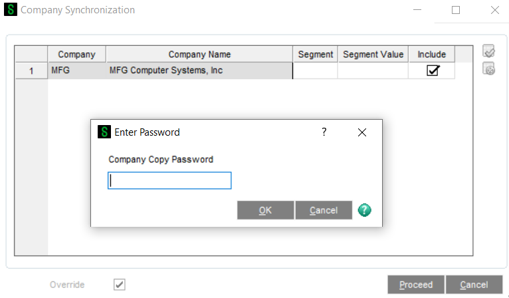
Each DSD synchronization enhancement adds a column to the Company Synchronization Maintenance grid on the Library Master Setup menu. Check the box for each company that should receive copies, and then fine-tune how the copy works for your users.

✔ Choose Your Target Companies
Select which company codes are included in the copy for each type of record. G/L Accounts can go to one set of companies while Vendors go to another.
✔ Prompt During Data Entry
When checked, users see a Company Synchronization window as they Accept a record, and can include or exclude individual companies on the fly. When unchecked, the copy happens automatically in the background with no extra steps.
✔ Copy for Account Changes
New records are always eligible for copying. Check this option and changes to existing records, such as a new description, unit of measure, or address, are copied to the other companies too.
✔ Password-Protected Overrides
Enter a Password and users must check Override and supply the password before they can change which companies are included. Your synchronization rules stay in force unless an authorized user decides otherwise.
✔ Retain Last Company Selection
Remember each user’s last “Include” selections by company, instead of using one global selection.
✔ Only Display Companies That Need to Be Updated
For a new record, only companies that don’t already have it are listed. For a changed record, only companies where the record exists and the data is different are listed, keeping the prompt short and relevant.
✔ Change or Skip Existing Records
If a record already exists in a target company, users are prompted to Change (overwrite it) or Skip that company, so nothing is replaced by accident.
Part 2: Synchronizing Your Chart of Accounts, Inventory, and Bills
Consistent account numbers, item codes, and bills across companies are the foundation of reliable consolidated reporting and intercompany transactions. GLAC, IMIC, and BMBC keep them aligned from the moment they are created.
GLAC G/L Account Copy by Company
GLAC copies new G/L Accounts from Account Maintenance to the other companies you select, and you can copy changes such as Account Description and Account Type as well.
✔ Segment Substitution
Copy an account to another company with a different segment value. For example, swap the company or division segment as the account is copied, or leave the Segment fields blank to copy the same account number everywhere.
✔ Main Account and Rollup Codes
If the Main Account doesn’t exist in the destination company, it is created automatically, and the Rollup Code file is updated when required.
✔ Audit File Support
Check Update to Audit Files and changes copied to the GL_Account file are also recorded in the GL_Audit file.
Note: GLAC requires that all synchronized companies share the same G/L Account Structure (Account Mask).
IMIC Item Masterfile Synchronization
IMIC copies new and changed Inventory Items from Item Maintenance and Item Maintenance On-the-Fly to the other companies you select.
✔ All Item UDFs Included
The copy includes all User-Defined Fields on the CI_Item file, so your custom item data travels with the item.
✔ Optional Pricing Copy
Check Copy Item Standard/Retail Pricing to copy the Standard Unit Price and Suggested Retail Price. Otherwise, prices are set to zero and the Primary Vendor is left blank, so each company can set its own pricing and sourcing.
✔ Visual Integrator Imports
Items created through Visual Integrator are copied automatically to the companies you have selected.
BMBC Bill of Material Synchronization
Newly Released in October 2026
BMBC brings the same synchronization to Bill of Material Maintenance. When a Bill is created, or when any field or component of an existing Bill is changed, BMBC copies it to the selected companies, so your production companies always build from the same recipe. This includes Options and Option Interactions.
✔ Component-Level Changes
With Copy for Account Changes checked, adding, removing, or changing a component on an existing Bill is copied to the other companies.
✔ Visual Integrator Imports
Bills of Material created through Visual Integrator are copied automatically to the companies you have selected.
Part 3: Synchronizing Customers and Vendors
Customers and vendors are often shared across companies, and their details change constantly. AR-1239 and AP-1085 make sure an address, terms code, or contact change made in one company reaches every company that does business with them.
AR-1239 Multi-Company Customer Synchronization
AR-1239 synchronizes Customer Maintenance information across every company that has Accounts Receivable set up and contains the customer’s division. As you Accept a new customer or a change, you are prompted to choose the companies to update, and companies where the Customer Number already exists are checked by default.
✔ Customer, Ship-To, and Contact Records
Changes to key customer fields (name, address, terms code, sales tax schedule, email, phone, and fax), Ship-To Address fields, Contact Code fields, and Paperless Delivery Options all trigger synchronization, including from Ship-To Address Maintenance and Contact Code Maintenance outside of Customer Maintenance.
✔ Required Records Created Automatically
When a new customer is created in a destination company, its Salesperson and Terms Code are copied too. If they don’t exist there, they are created automatically.
✔ UDF Support
User-Defined Fields are supported for Customer, Customer Contact, and Ship-To Address data.
AP-1085 Multi-Company Vendor Synchronization
AP-1085 synchronizes Vendor Maintenance and Vendor Maintenance On-the-Fly across every company with Accounts Payable activated. A new vendor, or a change on the Main or Additional tab, displays the company listing as you Accept.
✔ Over 30 Synchronized Fields
Vendor Name, address, Primary Contact, Terms Code, G/L Account, email, URL, phone, hold and separate check flags, tax schedule and class, and 1099 settings including Vendor Type, Default Form, Taxpayer ID, and Default Box are all kept in step.
✔ Private Vendors
Assign a check box UDF as the “Private” flag in Setup. Vendors marked private are excluded from synchronization, so company-specific vendors stay where they belong.
✔ Contacts and Terms Created Automatically
Contact Codes and Terms Codes are created in the destination company if they don’t already exist. If the vendor’s G/L Account doesn’t exist there, you are warned and the account is left blank rather than copied incorrectly.
✔ Vendor Name Report
A new report on the A/P Reports menu lists each vendor number and every company it exists in, and prints a warning when the same vendor number has different names in different companies, making it easy to find and fix inconsistencies.
Better Together: A Complete Multi-Company Strategy for Sage 100
Each enhancement synchronizes one master file, but together they keep your entire multi-company Sage 100 system consistent:
- Accounts with GLAC: new and changed G/L Accounts are copied to other companies, with Segment Substitution where needed.
- Items with IMIC: Inventory Items and their UDFs are copied, with optional pricing.
- Bills with BMBC: Bills of Material and their components stay identical across production companies.
- Customers with AR-1239: customers, ship-to addresses, contacts, and paperless delivery options are updated everywhere at once.
- Vendors with AP-1085: vendor, terms, and 1099 information stays consistent, while private vendors stay private.
The result is less duplicate data entry, fewer errors, cleaner consolidated reporting, and the confidence that a change made in one company is reflected everywhere it should be, with you in control of exactly where that is.

Jon Reiter
General Manager, Sage 100 Enhancements