

















How to Use the Default Zoom Feature in Sage 100 ERP
November 11, 2014
Throughout the course of any given day, users have the need to run reports in Sage 100 ERP. Previous to the 2013 version of Sage 100 ERP, the default font size for stock reports has always been 8-point font. The last time I checked, that was pretty small! Thankfully, we now have the ability to set the default zoom for previewing reports- and the setting can be unique to each individual user! To change this setting, use the following steps:
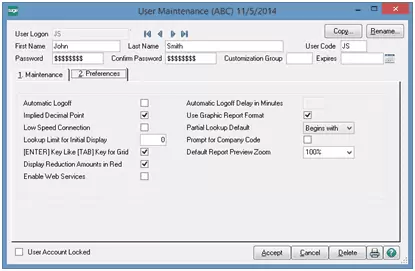
Go to the Library Master module—Main folder—User Maintenance—Preferences tab.
Select a User Logon record.
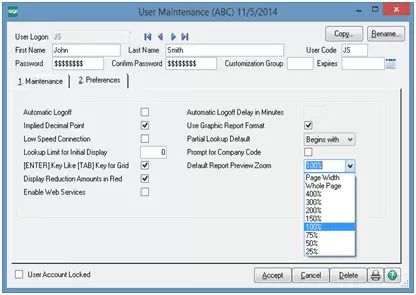
The Default Report Preview Zoom can be found on the bottom right-hand side of the screen.
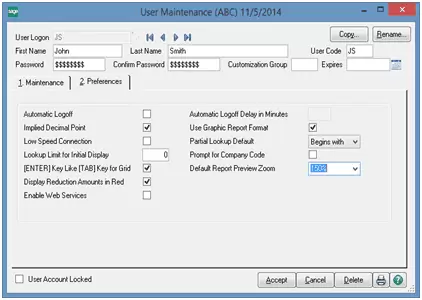
Using the drop-down arrow, you can choose what percentage you want to set the report preview to be.
Press the Accept button to save.
Follow the above process until all desired settings have been created.
This feature will enable users to preview reports without having to change the report zoom setting each time. What a great time saver AND eye saver!

Written by Cindy Whitlock, ERP Consultant at DSD Business Systems